Build with Zide Assist
Fix the sample's temperature bug, finish its forecast, and review the work before committing.
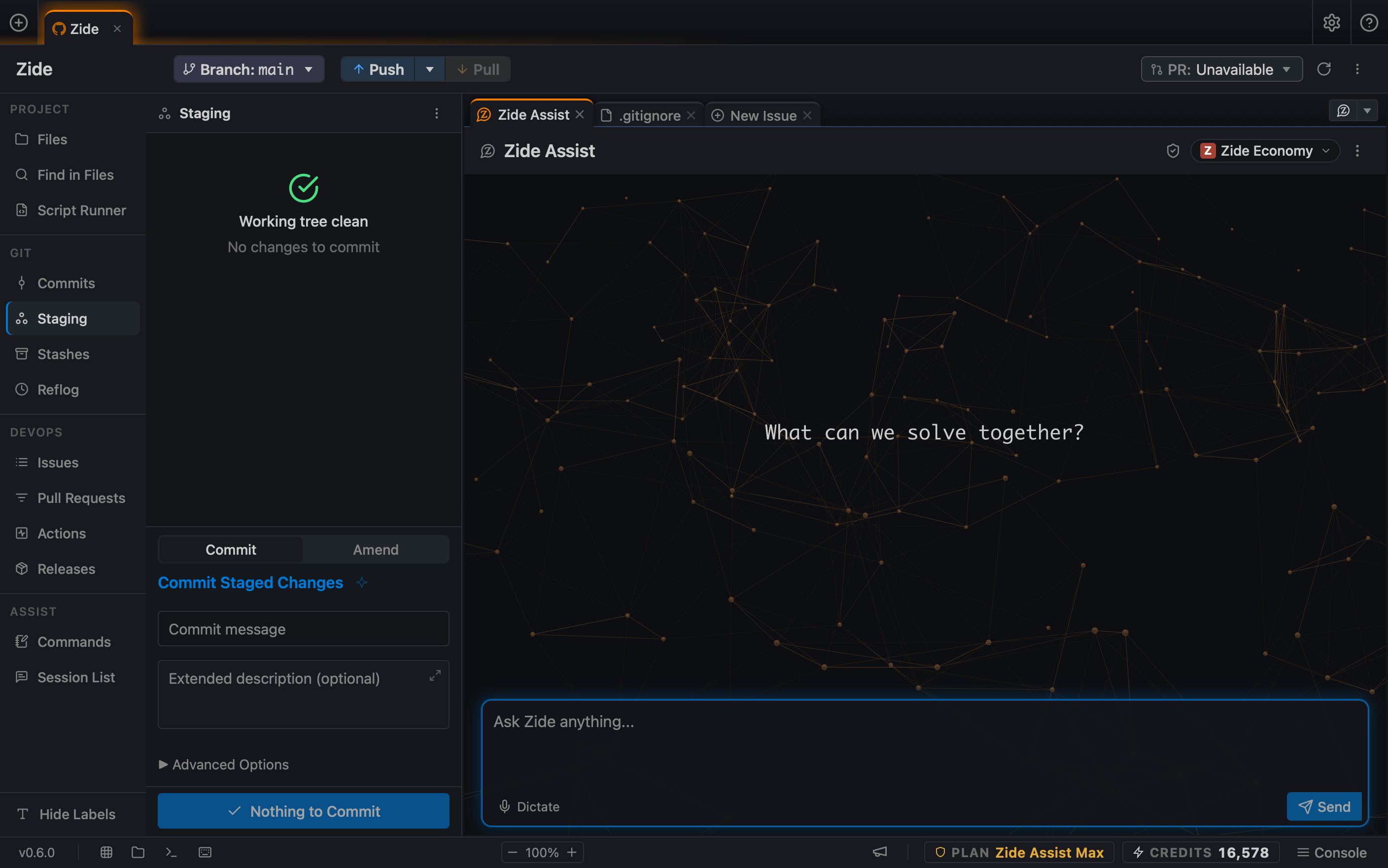
Zide Assist is the AI assistant built into Zide. It can investigate a project, edit files, and run tools subject to your access and approval settings. Start from a clean Staging view so you can identify the changes made during this exercise.
Start a session
Zide Economy works well for these exercises.
- Click the weather Project Tab at the top of the window. If you continued a conversation from Ask Zide, click its Zide Assist content tab. Otherwise, click Assist in the menu bar, then click New Session Tab.
- Leave this tab open. You can click between it and your files as you work.
Fix the temperature
Reload the weather page in your browser. Its heading should have your edit, but the temperature should still be 130°F. The sample reading is 12.5°C, which should display as 55°F. Let's fix that.
Click Copy prompt below. In Zide, click the message field at the bottom of your Zide Assist tab, paste the prompt, and click Send.
The current weather page shows an absurd temperature. Trace the data through the rendering code, fix the bug, and add a regression check to tests.html that would catch it. Keep the project dependency-free. Do not commit yet. Explain what changed and which checks you actually ran.- Read requests for tool approval before allowing them. If Zide Assist asks a question, answer it within the sample project's scope.
- Wait for the response to finish. Read its explanation, then click Staging in the activity bar. Click each changed file to read its diff.
- Click Reload in the weather browser tab. The current temperature should now read 55°F.
- Return to Zide. If the file list is not visible, click Files in the activity bar. In the list, click tests.html. Click Preview and Open in Browser. Read the results, including the new check for the displayed temperature.
- If a check fails or the page is still wrong, send the observed result back to Zide Assist. Review the next changes before continuing.
- Click Staging. Click Stage beside each reviewed file, type
Fix the current temperature displayin Commit message, and click Commit. The first-commit chapter shows those controls in more detail.
Finish the five-day forecast
Now return to the Zide Assist tab. Paste this prompt into its message field and click Send.
Finish the five-day forecast in src/forecast.js using Weather.daily, Weather.formatTemperature, and the existing forecast-card styles. Show the day, condition, and high and low for each entry. Keep it dependency-free. Add useful checks, do not commit yet, and explain how I can verify the result in a browser.- Wait for the reply to finish, then reload the weather page. Five forecast cards should replace the unfinished-forecast message.
- If the file list is not visible, click Files in the activity bar. Expand data and click observations.js. Compare the day names and conditions in
Weather.dailywith the cards. The temperatures on the page are converted to Fahrenheit. - Reload the browser tab for tests.html and check for failures. Return to Staging and click each changed file to review its diff.
- Stage the reviewed changes, type
Complete the five-day forecastin Commit message, and click Commit.
Check your result
The page shows 55°F and five forecast cards. Click Commits to find a separate commit for each task. If the page or tests are still wrong, return to the same conversation with what you observed.
Keep track of your work
Click Session List in the activity bar to find this project's conversations. To find a session in another project, click Tools in the menu bar, then click Session Watch. Click the session's tile to return to it.
Later, try Crosscheck when you ask Zide Assist to make commits. It uses a second model to review commits made by Zide Assist. It does not automatically review the manual commits in this exercise.
More detail: Zide Assist, Credits, and Safety and permissions.