Work in parallel with QuickTree
Fix the temperature and build the forecast in separate copies of the sample, then merge both changes into one finished page.
What you will finish: A weather page with a corrected temperature and a five-day forecast, merged into the parent project with the temporary worktrees removed.
Before you begin
- Based on Zide v0.7.6.
- Complete the first-project guide through reviewing and committing changes, or be comfortable with those actions in Zide.
- Use a Zide account with Zide Assist access, an available model, and capacity for the parent Project Tab plus two worktree Project Tabs. AI requests use credits.
- Use a fresh built-in Sample weather web page. This tutorial does not need a Git hosting account or a package installation.
Prepare the parent project
In the first tutorial, you did one task at a time. Here you will give the temperature fix and forecast their own folders, so two Assist sessions can work without editing the same files. Start with a fresh sample, even if you kept the finished one.
- Click File in the menu bar, then click Open Project. The Open Project screen appears.
- Scroll to Sample Projects and find the Sample weather web page card.
- On that card, click New Sample Project. The Create Sample Project dialog opens.
- Type
weather-parallelin Folder Name. Click Browse… beside Parent Folder and select a folder for this practice copy. - Check the destination path, then click Create Sample. Zide opens the new project and its README.
Now check the starting page:
- The file list is open by default. If it is not visible, click Files in the activity bar on the left. In the file list, click index.html. Click Preview in the file toolbar, then Open in Browser. The page should show 130°F and an unfinished forecast. The observation is 12.5°C, which should display as 55°F.
- Back in Files, click tests.html, then Preview and Open in Browser. Its seven checks pass even though the displayed temperature is wrong. None of them checks the rendered current temperature.
- Return to Zide and find Branch in the project header below the Project Tabs. It should show
main. If your sample uses a different default branch, substitute that name throughout this tutorial. - Click Git in the menu bar, then click Staging. Both Unstaged and Staged should be empty. The sample already has its initial commits. If you made an edit during setup, review and commit it before continuing.
Switching branches normally changes the files in one folder. A worktree gives another branch its own folder and Project Tab, so both versions can stay open. They share Git history, but each has its own working files.
Leave the
weather-parallelProject Tab open. We will call this the parent project to distinguish it from the worktrees you are about to create.
Start the temperature task
Click the weather-parallel Project Tab. In the menu bar, click Assist, then click QuickTree. The QuickTree dialog opens with a large prompt field.
Click Copy text below, click the prompt field in QuickTree, and paste:
Fix only the current-temperature conversion bug in this weather sample.
Trace data/observations.js, src/temperature.js, and src/weather.js.
The 12.5 Celsius reading must display as 55 degrees Fahrenheit after rounding.
Update src/weather.js and add a regression check to tests.html that exercises
renderCurrentConditions. Keep the existing checks. Do not implement the forecast,
change the data, install packages, commit, merge, or remove a worktree.
Explain the cause and tell me how to verify your changes in the browser.- Below the prompt field, click the summary row that shows the worktree, model, and branch. Its arrow turns and the settings expand.
- Replace Worktree Name with
weather-temperature. - Click the Model control and select an available model.
- Click the Base Branch dropdown and select
main. This is the committed starting point for the task. - Click Create. A new Project Tab opens, and Zide Assist starts the task there. Read any questions or approval requests in that conversation.
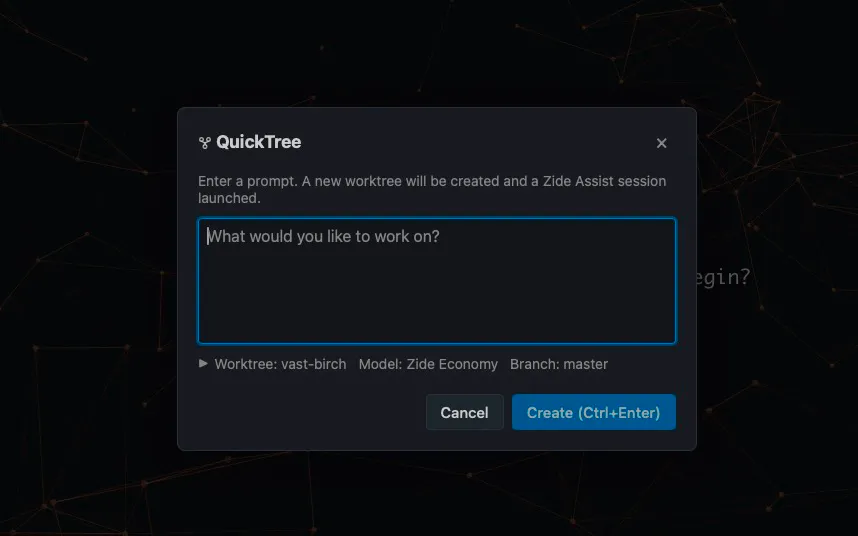
Reference image from another project. Expand the summary to choose your settings; use main for this exercise even if the image shows a different branch.
The new Project Tab has a worktree badge. Click Worktree in its project header and read Worktree branch. This is the task’s branch. Click outside the dropdown to close it.
You now have the parent and temperature worktree open in separate Project Tabs. If QuickTree displayed an error instead, stop here and follow the explanation in the dialog.
Start the forecast task
Click the weather-parallel Project Tab again. Check that its header says Branch: main, then click Assist in the menu bar and click QuickTree. Starting from the parent gives this second task the same original files as the first.
Paste this prompt into the dialog’s prompt field:
Complete the five-day forecast in this weather sample. Change only src/forecast.js.
Read Weather.daily from data/observations.js and the existing styles.css classes.
Render one forecast-card per day, with day, condition, and high/low temperatures.
Use Weather.formatTemperature for both temperatures. Keep the section heading.
Do not fix the current-conditions temperature, edit other files, add dependencies,
commit, merge, or remove a worktree. Explain how I can verify all five cards.
Click the summary row below the prompt to expand it. Type weather-forecast in Worktree Name, select an available Model, and select main in Base Branch. Click Create.
You now have three Project Tabs. Click between them to see each project’s files and conversation. To find both running sessions together, click Tools in the menu bar, then Session Watch. Click a session’s tile to return to its tab.
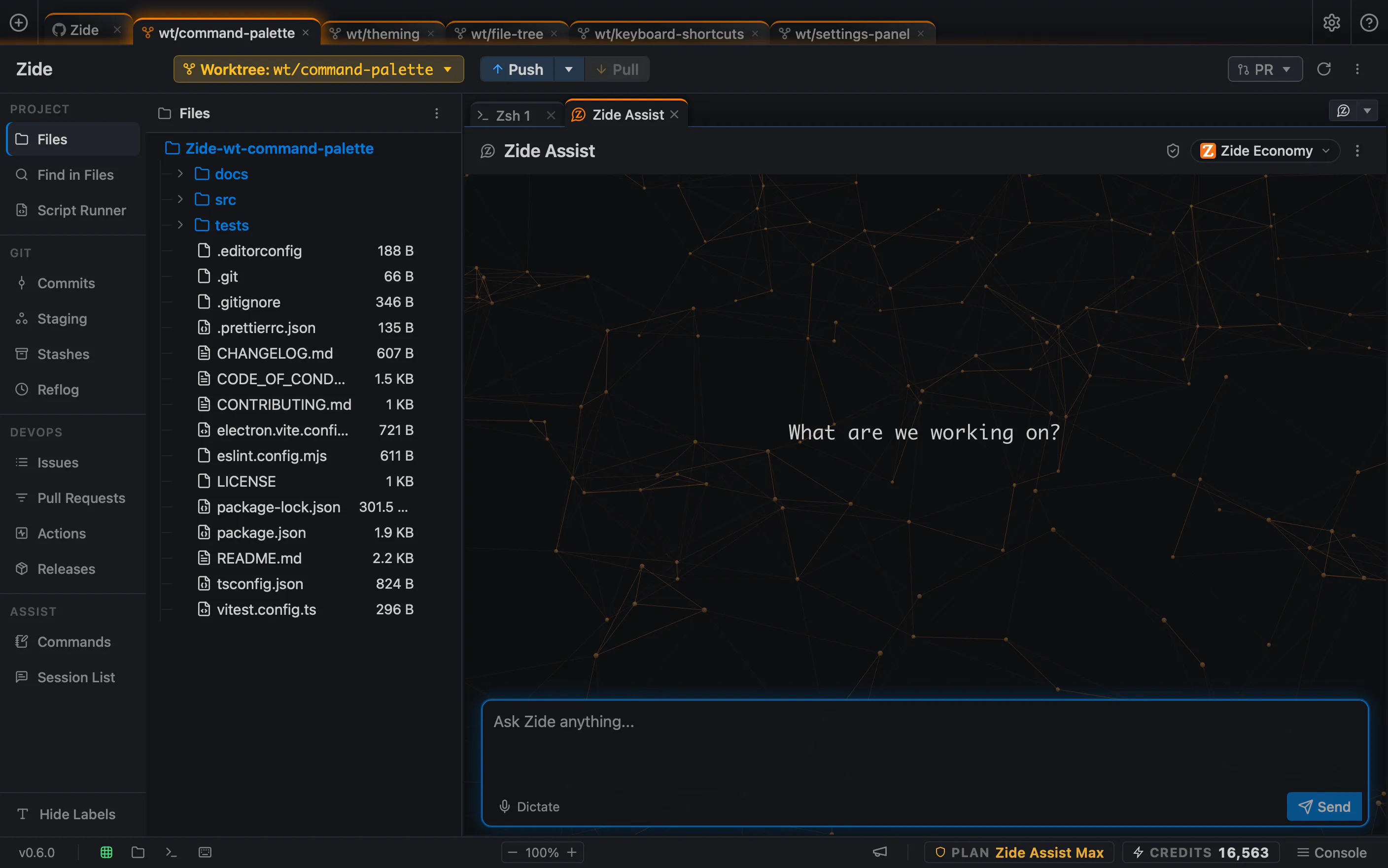
Reference image from a different repository and an earlier Zide version. Your project and branch names will differ. Use the current Worktree control for the lifecycle steps below.
The forecast task may finish first. That is fine: the two tasks are working on separate copies of the sample.
Review and commit each result
As each session finishes, check its changed files and browser page before making a commit.
Temperature worktree
- Click the temperature worktree’s Project Tab. Click Git in the menu bar, then Staging. Click each file under Unstaged to read its diff. Expect changes to
src/weather.jsandtests.html. Investigate any other changed files before committing them. - If the file list is not visible, click Files in the activity bar. In the list, click index.html, then Preview and Open in Browser. Check that the browser’s address points into the temperature worktree’s folder. Current temperature should be 55°F; the forecast should still be unfinished.
- Open this worktree’s
tests.html. All checks, including the added renderer check, should pass. Inspect the new assertion: it must check the rendered temperature, not just repeat a helper calculation. - If the change is wrong, return to the same Assist session with the failing result. Review and repeat the checks after the correction.
- Return to Staging. Hover over the icons beside each reviewed file to find Stage, then click it. The files move to Staged. Type
Fix current temperature conversionin Commit message and click Commit.
Forecast worktree
- Click the forecast worktree’s Project Tab. Click Git, then Staging. Click
src/forecast.jsunder Unstaged to read its diff. This should be the only changed file. - If the file list is not visible, click Files in the activity bar. In the list, click index.html, then Preview and Open in Browser. Confirm five cards, in the order from
Weather.daily, with day labels, conditions, and high/low temperatures. - Compare the card values with
data/observations.jsandWeather.formatTemperature. Resize the browser to check that the cards remain readable. - Run its
tests.html. The original checks should still pass. These checks do not replace your visual forecast review. - Return to Staging and click Stage beside
src/forecast.js. TypeComplete five-day forecastin Commit message, then click Commit.
The forecast worktree can still show 130°F in current conditions at this point. That fix belongs to the other branch and has not been brought in yet.
Check Staging in each worktree: both file groups should be empty. Then reload the parent’s browser page. It should still show 130°F and the unfinished forecast. Committing a task does not merge it into the parent.
Merge the temperature result
- Click the parent Project Tab. Confirm Branch is
mainand Staging is clean. The merge will go into the branch currently checked out in this parent project. - Click the temperature worktree’s Project Tab. Click Worktree in the project header, then click Finish worktree… in its dropdown. The Finish worktree dialog opens.
- Select Merge into parent project. Confirm the displayed parent branch is
main. - Clear Delete worktree if it is checked. The confirmation button should say Merge. Click Merge to bring the temperature commit into the parent.
- Open the parent’s
index.htmlandtests.htmlagain. Refresh both. Expect 55°F, passing checks, and the unfinished forecast.
Unsaved or uncommitted worktree changes are not part of this merge. If Zide blocks the operation, read its explanation and check both projects before trying again.
The parent should now show 55°F, with the forecast still unfinished. You have brought in the first task. Its worktree is still there because you left deletion off.
Bring the forecast up to date and merge it
- Click the forecast worktree’s Project Tab. Save any open edits and confirm Staging is empty.
- Click Worktree in the project header, then Merge from main. If a confirmation dialog opens, click Merge. This brings the parent’s temperature fix into the forecast branch. The command uses your repository’s default branch name.
- Refresh this worktree’s browser page and run
tests.html. Expect 55°F, five forecast cards, and passing checks together. - If Git reports conflicts, open the conflicted files from Staging, inspect both changes, save the intended result, and complete the merge. Re-run the checks. Do not select one side blindly. For a first rehearsal, you can abort the merge and return to the last clean state before asking for help.
- Click the parent Project Tab and confirm it is still clean on
main. Return to the forecast worktree, click Worktree, then Finish worktree…. Check Merge into parent project, clear Delete worktree, confirm the destination ismain, and click Merge. - Reload the parent’s browser page and tests. Back in Zide, click the parent Project Tab and click Commits in the activity bar to see the combined history.
The assigned files do not overlap, so this exercise should merge without a conflict. Different AI edits can change that outcome. Inspect scope before merging if a task changed files outside its prompt.
On the parent’s page, look for 55°F and five forecast cards together. Check that its tests pass before removing either worktree.
Remove the finished worktrees
Once the parent is verified, stop any running task or process in each worktree and save all editor files.
For each worktree, click its Project Tab, click Worktree in the header, then click Finish worktree…. Clear Merge into parent project and check Delete worktree. Leave Also delete branch off for this exercise, so the task branch remains available in history. Check the displayed folder, then click Remove worktree.
Removing each worktree closes its Project Tab and deletes its folder. The merged commits remain in the parent, and the task branches remain in the Branches tab.
Click the parent Project Tab, then click Git in the menu bar and Worktrees. Confirm that the two temporary worktrees no longer appear. Keep the parent sample as your completed result.
The parent page is your finished result. The two task folders and their Project Tabs are gone, while the merged changes remain in the parent.
Recover or try another task
| What you see | What to check |
|---|---|
| QuickTree cannot start | Resolve its Git or account message. A repository needs a commit and an available base branch. |
| A browser page shows the wrong result | Check its full folder path and refresh. Each worktree has a separate copy of index.html. |
| Merge from main is unavailable | Read the reason. Already up to date is expected before the parent gains a new commit. |
| Finish names the wrong destination | Cancel, switch the parent branch, then reopen Finish in the worktree. |
| Removal is blocked | Save files, finish Git operations, and check for a worktree lock. Do not acknowledge losing changes you want to keep. |
For another rehearsal, create weather-parallel-2 from the built-in sample. Reusing the finished sample would skip the starting failure and make the checkpoints misleading.
Next, follow Issue to release with GitHub using the link below to take a change through a hosted review. If you want to create a worktree without starting AI, click Git in the menu bar, click Worktrees, then click New Worktree in the tab that opens. QuickTree starts Zide Assist; Claude Code and Codex are separate tools that you can open in a worktree through CLI Agent.