Use Claude Code or Codex
Bring your existing command-line AI tool into a tab beside your files and Git changes.
A CLI Agent tab runs an external tool such as Claude Code or Codex. The tool needs its own installation and sign-in. Zide Assist is a separate, built-in feature. You can use either workflow in the same project.
Connect your tool
- Install and sign in to Claude Code or Codex using that tool's setup instructions. Confirm it starts in an ordinary terminal before connecting it to Zide.
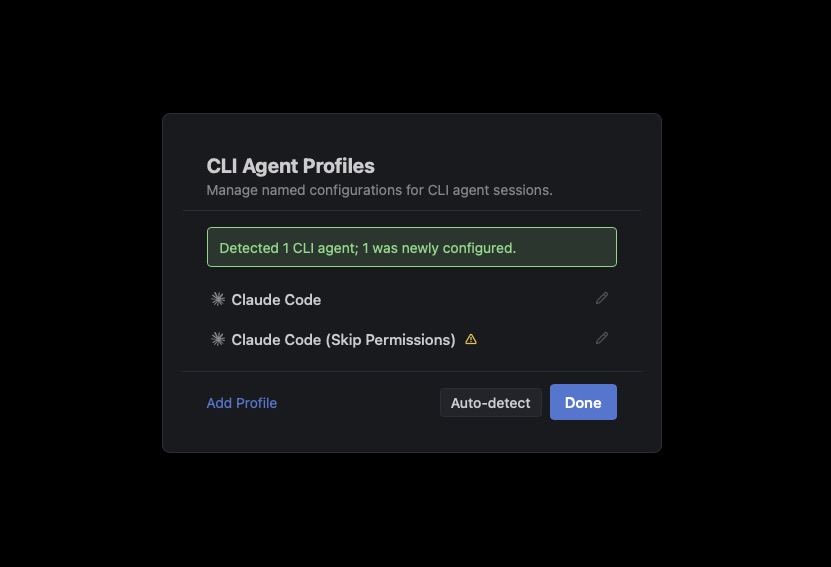
- In Zide's menu bar, click Tools, then click CLI Agent Profiles. The profiles dialog opens.
- Click Auto-detect, review the detected profile, then click Done.
- Click the weather Project Tab. Click Tools in the menu bar and point to Chat With CLI Agent. Click your tool's profile in the submenu. A CLI Agent content tab opens in this project.
If detection finds nothing, check that the command is installed and available to Zide. You can add a profile manually with its executable path using Connect a CLI agent. Keep the tool's normal permission settings for this walkthrough.
Give it a small task
Start with a clean Staging view. If another AI session is still working in the sample, let it finish before asking this tool to edit the same files.
In this sample weather project, add the existing humidity reading to the current conditions card. Match the existing styling and keep it dependency-free. Do not commit. Tell me what changed and how to check it in the browser.Click Copy prompt, then click inside the CLI Agent tab. Paste the prompt at the tool's input prompt and press Enter to submit it.
- Read the tool's response and any approval requests in its CLI Agent tab.
- When it finishes, reload the weather page in your browser. The current-conditions card should include 62% humidity, the value in data/observations.js.
- Reload the browser tab for tests.html and check that the existing tests still pass.
- Click Staging in Zide's activity bar, then click each changed file to review its diff. Click Stage beside the intended files. Type
Show current humidityin Commit message and click Commit.
Find the session again
Click Tools in the menu bar, then click Session Watch. Find the tile with your tool and weather project, then click it. Zide returns you to that CLI Agent tab.
Check your result
The weather page includes the humidity reading, and Show current humidity appears in Commits. You have reviewed and recorded a change made by your CLI tool.
Know which service you are using
The CLI tool uses the account and billing configured with its provider. Hosting that CLI session in Zide does not turn its requests into Zide Assist requests.
More detail: Chat with CLI Agents and Session Watch.