Make your first commit
Make one small edit, see exactly what changed, and save a checkpoint in Git.
Three places a change can be
- Working files: the files on disk, including your saved edits.
- Staging: the changes you have selected for the next commit.
- A commit: a recorded snapshot with a message describing the change.
Saving a file does not commit it.
Edit the page heading
Check the Branch control in the project header. Stay on main for this first commit. The commit you make will advance that branch.
- If the file list is not visible, click Files in the activity bar. In the file list, click index.html. Click Edit in the file's toolbar.
- Find
<h1>Fairview Weather</h1>. Change only the heading text toMy Local Weather. - Save with Ctrl+S on Windows/Linux or Cmd+S on macOS. Refresh the browser to see your heading.
Inspect and stage the change
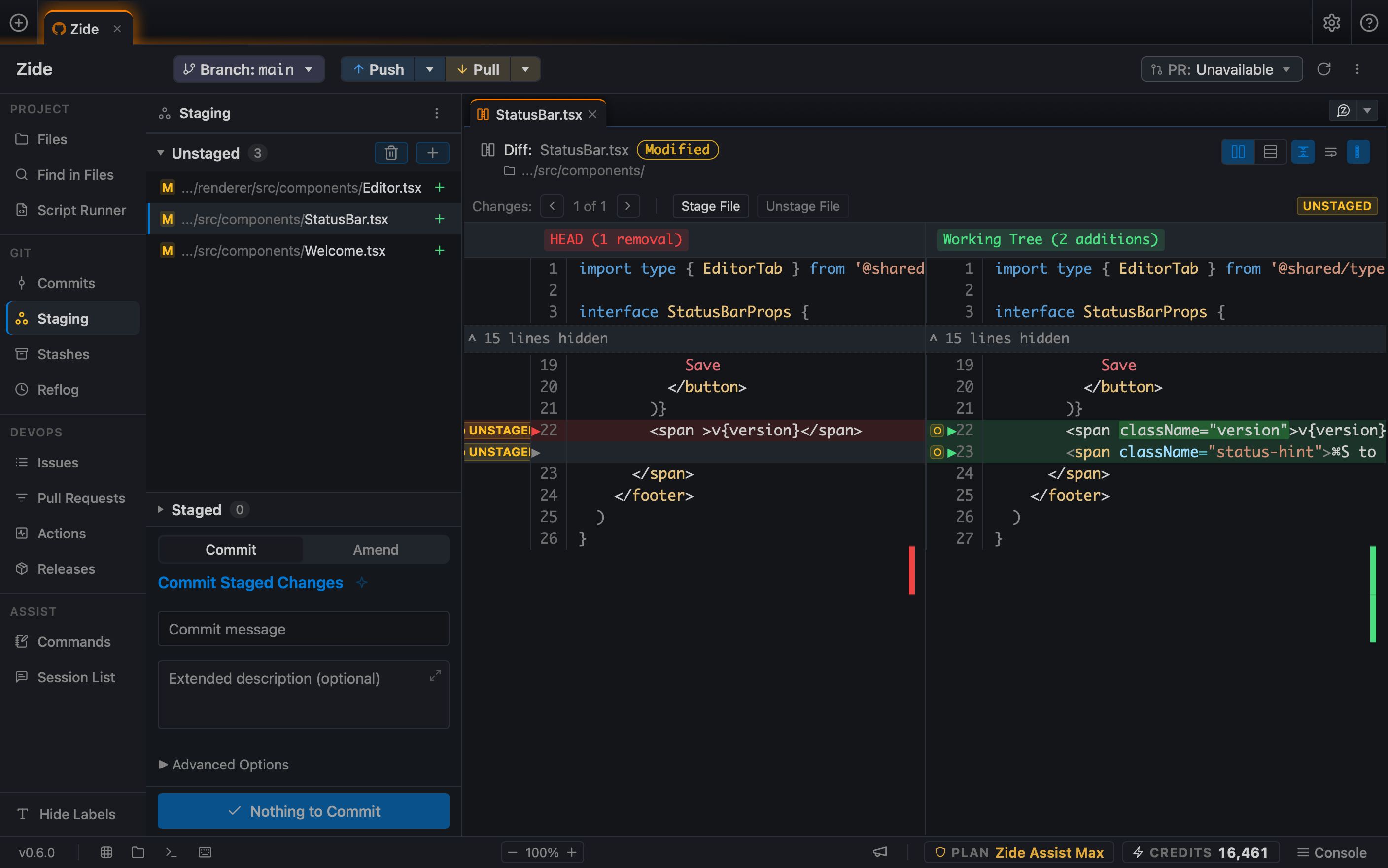
- Click Staging in the activity bar. Your file appears under Unstaged.
- Click index.html under Unstaged. A diff opens, showing the file before and after your edit. Find
Fairview Weatheron the removed line andMy Local Weatheron the added line. - Hover over the action icons beside index.html until you find Stage, then click it. The file moves to Staged. This selects the saved change for your next commit.
Record your checkpoint
- In the Staging panel, click the Commit message field and type
Personalize the weather page heading. - Click Commit. If Git asks for your author name and email, configure them and retry the commit.
- Click Commits in the activity bar. Find
Personalize the weather page headingat the top of the history and click it. Click index.html in that commit's changed files to see the edit you recorded.
Check your result
Click Staging again. Both Unstaged and Staged should be empty. The heading is still changed on the page; Git has recorded it. This is what later chapters mean by a clean working tree.
If the diff is not what you expected
Return to Edit, correct the file, save it, and review again. If you edit after staging, stage the new changes too. Unstage removes a change from the next commit but keeps it in your working files. Discarding a change removes the edit, so use it only when you intend to lose that work.