Start with the sample
Create a weather website you can experiment on, with Git history already in place.
Create your project
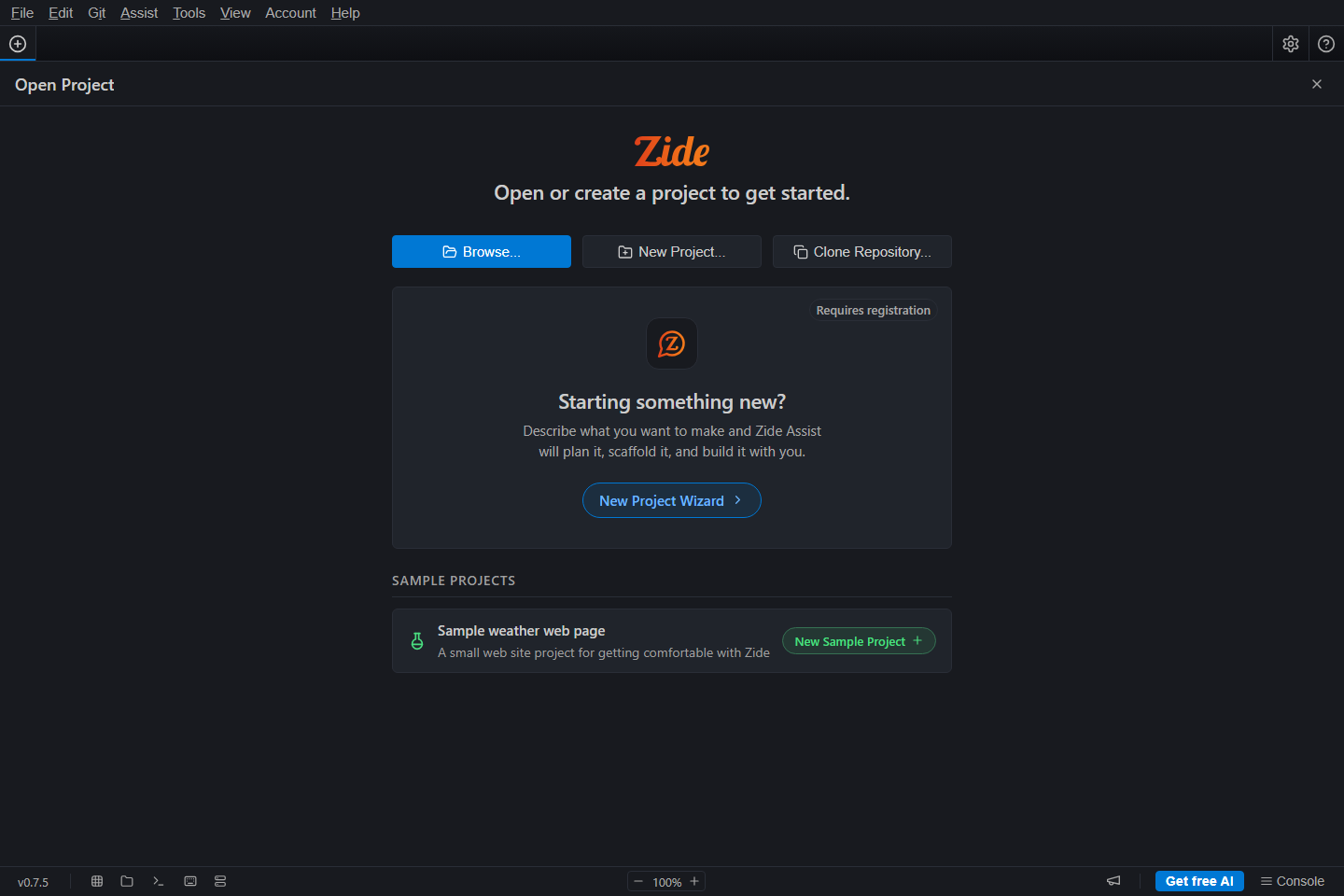
- Launch Zide. Click File in the menu bar, then click Open Project. The Open Project screen appears. If that screen is already open, start with the next step.
- Scroll to the Sample Projects section. Find the card named Sample weather web page.
- Click New Sample Project on that card. A Create Sample Project dialog opens.
- Leave Folder Name set to
sample-weather-page. Next to Parent Folder, click Browse... and select a folder where you keep practice projects. - Check the destination path shown in the dialog, then click Create Sample. Zide creates the folder and opens its README.md in a new Project Tab.
A project is a folder opened in Zide. This one also contains a Git repository, which records file changes over time. Zide creates the sample's files and history locally.
See the weather page
- The file list is open by default. If it is not visible, click Files in the activity bar on the left. If you see icons without labels, hold the pointer over an icon to read its name.
- In the file list, click index.html. The file opens in a content tab.
- Click Preview in the file's toolbar, then click Open in Browser. Your web browser opens the weather page. You can also double-click index.html in your computer's file manager.
- Leave that browser tab open. After editing the sample later, return to this tab and click your browser's Reload button to see the saved change.
Use the browser for this sample: the page loads separate JavaScript and CSS files, which Zide's single-file HTML Preview does not load. No web server is required.
You should see Fairview Weather, a current temperature of 130°F, and a note that the five-day forecast is not built yet. The temperature is deliberately wrong. You will fix it later, so leave it as it is for now.
Meet the files
- index.html and styles.css: the page and its appearance.
- data/observations.js: the sample weather readings.
- src/weather.js and src/temperature.js: current conditions and temperature helpers.
- src/forecast.js: the unfinished forecast.
- tests.html: browser checks you will use in the AI chapter.
Before moving on
Keep Zide and the weather page open. You will edit the files in Zide and check the result in your browser.
Start again when you need to
To start over, repeat the creation steps with a different Folder Name. To return to an existing copy, click File in the menu bar, click Open Project, and click your folder in the recent projects list.
More detail: Add a repository or folder.