Get answers with Ask Zide
Ask for help with Zide, then try a question about the file you are reading.
You have saved an edit and made a commit. If the distinction still feels unfamiliar, Ask Zide can help. It answers questions without editing your files or changing Git history.
Ask how Zide works
- Click the circled question mark button in the upper right corner of the app. Its tooltip says Documentation. The Docs panel opens.
- Click the up caret beside the Ask Zide heading to expand its conversation area.
- Click Copy prompt below. Return to Zide, click the question field in Ask Zide, paste the text, and click Send.
What is the difference between saving a file, staging a change, and making a commit in Zide?Read the answer and compare it with the commit you just made. If the answer includes a guide link, click it to open that guide in the Docs panel.
Check your result
You have an answer about saving, staging, and committing. Your sample files have not changed. You can continue to the next chapter now, or try the optional file question below.
Before continuing, click the X button in the Docs panel's header. Its tooltip says Close docs. This leaves room for the separate Ask Zide panel in the optional exercise below.
Optional: ask about the sample file
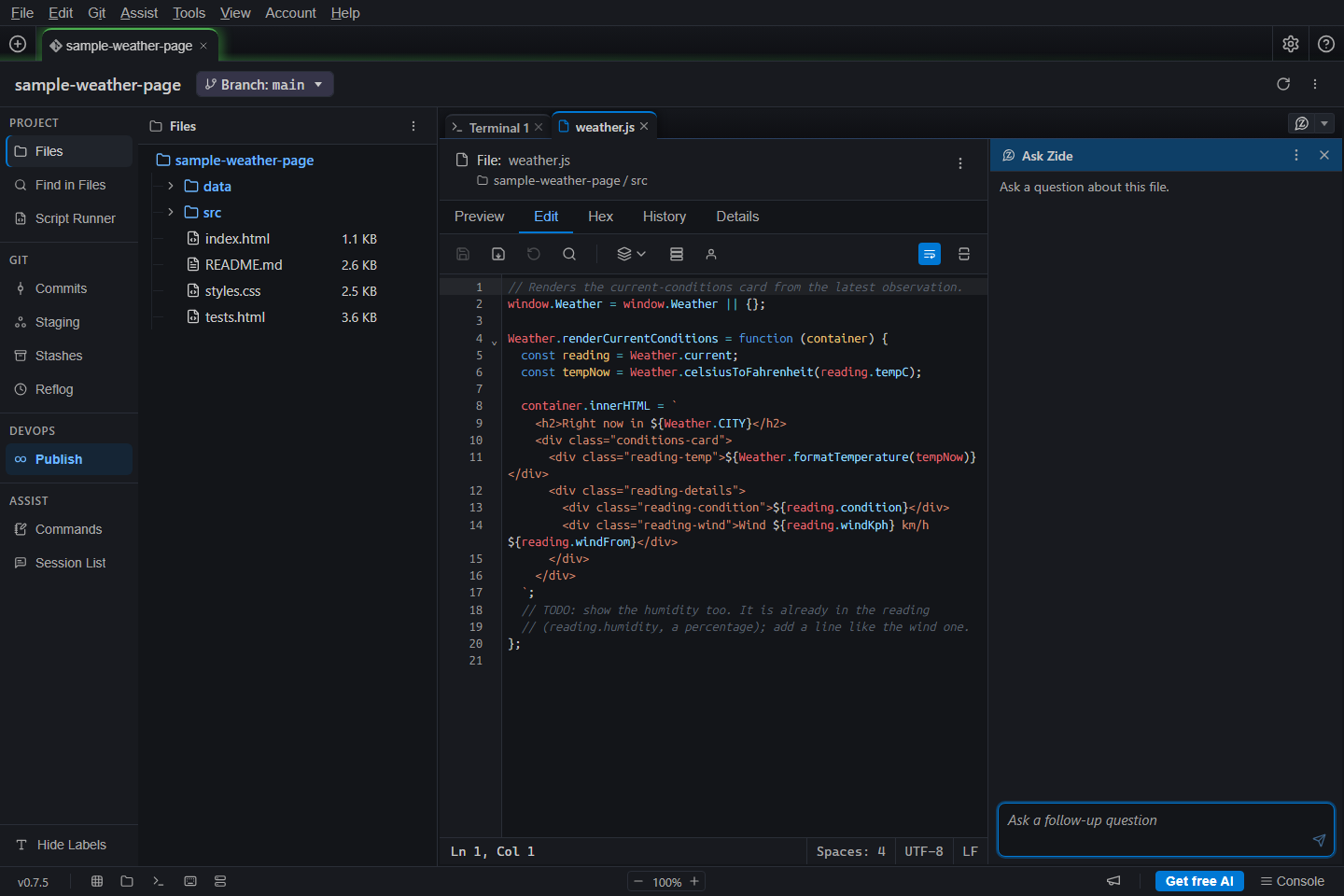
- If the file list is not visible, click Files in the activity bar. Expand the src folder and click weather.js.
- Click the three-dot menu button (⋮) in the weather.js tab's header. Its tooltip says More actions.
- Point to Assist with This. Its submenu has separate Zide Assist and Ask Zide groups.
- Under Ask Zide, point to Commands, then click Explain File. A question is sent automatically, and a panel opens beside or below the file.
- After the answer finishes, paste this question into that panel's message field and click Send:
Where does this page get its weather data, and how does a temperature reading become the text on the page?The Commands menu under Ask Zide runs a question beside the file. The other Commands menu, under Zide Assist, prepares a message in a full Assist conversation for you to review and send.
The answer should point to data/observations.js for the weather readings and src/temperature.js for the temperature helpers. Click those files in Files and compare the explanation with their contents.
Optional: ask about your commit
- Click Commits in the activity bar, then click Personalize the weather page heading.
- In the commit tab's header, click the three-dot menu button (⋮), then point to Assist with This.
- Under Ask Zide, point to Commands, then click Summarize Changes. Compare the answer with the heading change shown in the diff.
Continue in Zide Assist
If you opened Ask Zide beside a file or commit, click the three-dot menu button (⋮) in that panel's header, then click Continue in Zide Assist. The conversation opens in a Zide Assist tab, where you can ask for edits.
Ask Zide conversations are temporary. Continue in Zide Assist before closing the panel if you want to keep the discussion.
If you cannot send a question
Read the message beside the question field. It may ask you to sign in, add credits, or select an available model. The bundled Docs remain available while you resolve that message.
More detail: Ask Zide beside a tab.